
IPTV on Android TV is one of the easiest ways to access internet-based television through a large-screen device. Instead of relying entirely on traditional cable or satellite broadcasting, IPTV delivers supported live television, video-on-demand content, movies, series, and other media through an internet connection.
Android TV is particularly suitable for IPTV because it combines a television-friendly interface with support for streaming applications, Wi-Fi and Ethernet connectivity, powerful media decoding, search features, and compatibility with many IPTV player formats.
If you already have compatible IPTV access, setting it up on Android TV usually involves three things: a supported Android TV device, a compatible IPTV player, and valid access credentials from your provider.
In this guide, you will learn how IPTV works on Android TV, what internet speed you need, which IPTV app features matter, how to improve streaming performance, and how Android TV compares with Fire TV, Smart TVs, and dedicated IPTV boxes.
Quick Answer: IPTV on Android TV works by using an IPTV player application to receive television streams over the internet. Users normally install a compatible player, enter the credentials supplied by their IPTV provider, load the available channels or VOD library, and begin streaming.
What Is IPTV?
IPTV stands for Internet Protocol Television.
It is a method of delivering television and video content through an IP-based internet connection instead of conventional terrestrial, cable, or satellite signals.
Depending on the service and licensing available, IPTV systems may provide access to:
- Live television channels
- News
- Sports programming
- Movies
- TV series
- Video on demand (VOD)
- Children’s programming
- International channels
- Electronic Program Guide information
Traditional television generally follows a fixed broadcasting schedule. IPTV can provide greater flexibility because compatible platforms may combine live TV, catch-up functionality, EPG data, and on-demand libraries within one interface.
IPTV itself is a delivery technology. Users should always choose services and content sources that are authorized for use in their country or region.
What Is Android TV?
Android TV is Google’s television-focused operating platform designed for smart televisions and streaming devices.
It gives users access to apps, streaming services, media players, voice-assisted search, network connectivity, and other smart-TV functionality from a television interface.
Android TV or closely related Google TV platforms can be found on various televisions and streaming devices.
Common examples include:
- Sony televisions
- TCL televisions
- Hisense televisions
- NVIDIA Shield TV
- Android TV boxes
- Google TV-based streaming devices
- Other certified Android-based media players
Because Android TV supports a wide selection of media applications, it has become a popular platform for IPTV playback.
How Does IPTV Work on Android TV?
The process is relatively simple.
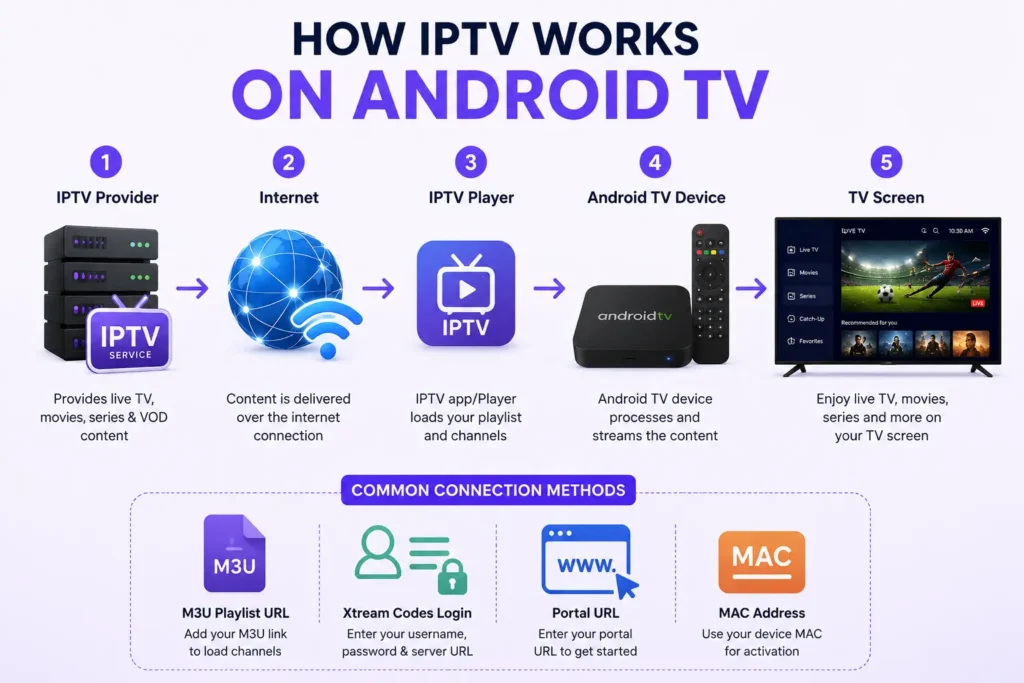
Your IPTV provider supplies compatible access information. An IPTV player installed on your Android TV reads that information and organizes the available streams into an interface that can include channels, groups, movies, series, favorites, and television schedules.
A typical connection looks like this:
IPTV Provider → Internet Connection → IPTV Player → Android TV → Television Screen
Depending on the provider and application, access may use formats such as:
- M3U playlist URL
- Xtream Codes-compatible login
- Username and password
- Portal URL
- MAC-based activation
The IPTV player normally does not provide television channels by itself. It acts as the software interface used to load and play content supplied through a compatible service.
Why Android TV Is Good for IPTV
Android TV provides several advantages for IPTV viewers.
1. Wide IPTV App Compatibility
One of Android TV’s biggest advantages is application flexibility.
Depending on your device and region, you may be able to use popular media or IPTV players such as:
- TiviMate
- IPTV Smarters-compatible players
- XCIPTV
- VLC
- Kodi
- Smart IPTV-compatible applications
- Other M3U or Xtream-compatible players
Before installing an application, check that it supports the login format supplied by your provider.
2. Television-Friendly Navigation
Android TV is designed to be controlled from a couch using a television remote.
That means IPTV apps can offer features such as:
- Channel categories
- Favorites
- Search
- Recently watched content
- EPG navigation
- Movie and series libraries
A well-designed IPTV player can therefore feel much closer to a traditional television experience than using a phone or computer.
3. HD, Full HD and 4K Support
Modern Android TV devices may support resolutions ranging from SD and HD to Full HD and 4K.
Actual picture quality depends on several factors:
- Source stream resolution
- IPTV service quality
- Internet bandwidth
- Television resolution
- Device decoding capabilities
- Network stability
A 4K television alone does not make an IPTV stream 4K. The original stream and playback device must also support that resolution.
4. Wi-Fi and Ethernet Connectivity
Many Android TV devices support Wi-Fi, while some televisions and boxes also include Ethernet.
Ethernet is often preferable for high-bitrate streaming because it can provide a more consistent connection than congested or weak Wi-Fi.
How to Set Up IPTV on Android TV
The exact steps vary by device and player, but the overall process is similar.
Step 1: Connect Your Android TV to the Internet
Open your Android TV network settings and connect through either:
Wi-Fi: Convenient when your TV is near a strong router or access point.
Ethernet: Usually more stable for continuous HD or 4K streaming when supported.
Before continuing, test another streaming application to make sure the internet connection is working properly.
Step 2: Choose a Compatible IPTV Player
Open the application store available on your device and search for an IPTV player supported by your service.
Before choosing an app, check whether it supports:
- M3U playlists
- Xtream-compatible credentials
- EPG
- VOD
- Live TV
- Favorites
- Search
- Multiple playlists, if required
Step 3: Install and Open the App
Install your chosen player and launch it.
Most IPTV apps will ask how you want to add your service.
Typical options include:
- Playlist URL
- Xtream login
- Portal address
- Local playlist file
Step 4: Enter Your IPTV Credentials
Enter the details supplied by your provider carefully.
For example, an Xtream-style configuration may require:
- Server or portal URL
- Username
- Password
Avoid publicly sharing your IPTV login details because they may provide access to your subscription.
Step 5: Allow the Playlist to Load
The app may take a short time to download and organize:
- Live TV categories
- Channel names
- Logos
- EPG information
- Movies
- Series
Large playlists can take longer to synchronize.
Step 6: Create Favorites and Organize Channels
Once your service has loaded, organize the interface.
You may want to create favorite groups for:
- Sports
- News
- Entertainment
- Movies
- Kids
- Regional channels
This significantly reduces the time spent browsing large IPTV libraries.
Best Features to Look for in an Android TV IPTV App
Choosing the right IPTV player can improve usability just as much as upgrading your hardware.
Electronic Program Guide (EPG)
An Electronic Program Guide displays current and upcoming programming.
A useful EPG makes it easier to:
- See what is currently playing
- Check upcoming programs
- Browse schedules
- Navigate channels without opening each one individually
Favorites
If your playlist contains hundreds or thousands of channels, favorites are essential.
Instead of scrolling repeatedly, you can save frequently watched channels in one category.
Catch-Up TV
Some providers support catch-up television for selected channels.
This allows users to access previously broadcast programming within a defined period.
Availability depends on the service and specific channel.
Search
Good search functionality should help locate:
- Live channels
- Movies
- Series
- Categories
This becomes especially valuable with large VOD libraries.
Multi-Playlist Support
Advanced users or households may want an application capable of managing more than one authorized playlist or profile.
Parental Controls
Where available, parental-control options can help restrict access to selected content categories.
Recommended Internet Speed for IPTV on Android TV
There is no single speed that guarantees perfect IPTV performance because stream bitrate and network congestion vary.
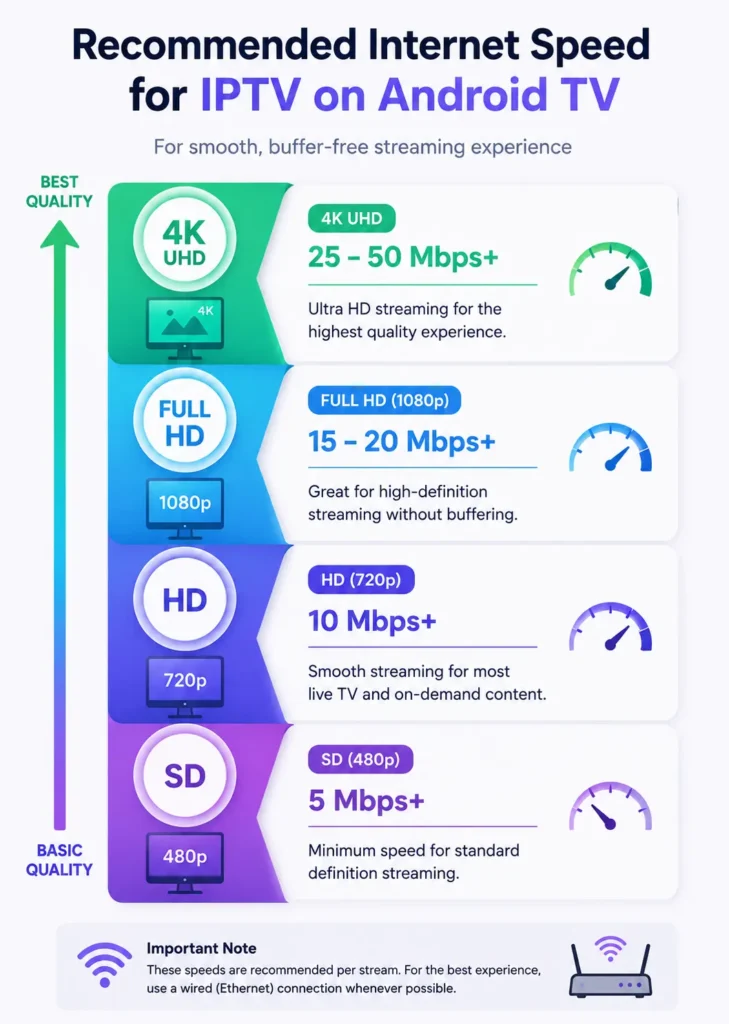
However, the following ranges provide a useful starting point:
| Streaming Quality | Suggested Connection Speed |
|---|---|
| SD | 5 Mbps+ |
| HD | 10 Mbps+ |
| Full HD 1080p | 15–20 Mbps+ |
| 4K UHD | 25–50 Mbps+ |
These figures should be considered per active high-quality stream, not necessarily for the entire household.
For example, if one person is watching 4K IPTV while several others are gaming, downloading files, or streaming video, your total broadband connection may need substantially more bandwidth.
Speed Is Not the Only Factor
A 100 Mbps connection can still buffer if:
- Wi-Fi coverage is weak
- The router is overloaded
- The provider’s server is congested
- The IPTV source itself is unstable
- The device has insufficient memory
- Too many background applications are running
For this reason, latency, Wi-Fi signal quality, server performance, and device hardware can be just as important as headline download speed.
How to Reduce IPTV Buffering on Android TV
Buffering is one of the most common IPTV complaints, but it does not always mean the IPTV service itself is the problem.
Try these troubleshooting steps in order.
Use Ethernet Where Possible
A wired connection removes many of the interference problems associated with Wi-Fi.
If your Android TV device does not have Ethernet built in, compatible adapters may be available for certain models.
Move the Router Closer
Walls, floors, appliances, and distance can weaken Wi-Fi signals.
If Ethernet is not practical, positioning your router or mesh access point closer to the television may improve stability.
Use 5 GHz or Modern Wi-Fi Bands
When the TV is close enough to the router, a less-congested modern Wi-Fi band can provide higher throughput than older 2.4 GHz connections.
However, higher-frequency signals generally have shorter effective range.
Restart the Router and Android TV
Temporary network or memory issues can often be cleared by restarting:
- Android TV
- Router
- IPTV application
Close Unnecessary Applications
Low-memory Android TV boxes can slow down when several applications remain active.
Close unused applications and restart the device periodically.
Clear IPTV App Cache
If the IPTV application becomes unusually slow or unstable, clearing its cache may help.
Avoid clearing application data unless you have saved your login details, because doing so may remove your configuration.
Common IPTV Problems on Android TV
IPTV App Keeps Crashing
Possible causes include:
- Outdated app version
- Low storage
- Low available RAM
- Corrupted cache
- Device compatibility problems
Update the application and Android TV software, remove unnecessary files, and restart the device.
Channels Will Not Load
If the app itself opens but channels do not, check:
- Internet connectivity
- Login credentials
- Subscription status
- Playlist URL
- Server availability
If every channel fails while other apps work normally, contact your service provider.
EPG Is Missing
EPG problems may occur when:
- The guide has not finished syncing
- The provider’s EPG source is unavailable
- The selected player needs manual EPG configuration
- Time-zone settings are incorrect
Try refreshing the EPG or playlist first.
Audio Plays but Video Does Not
This may indicate a codec or hardware-decoding compatibility problem.
Changing the player’s decoder between hardware and software modes can sometimes solve it.
Android TV vs Fire TV Stick vs Smart TV vs IPTV Box
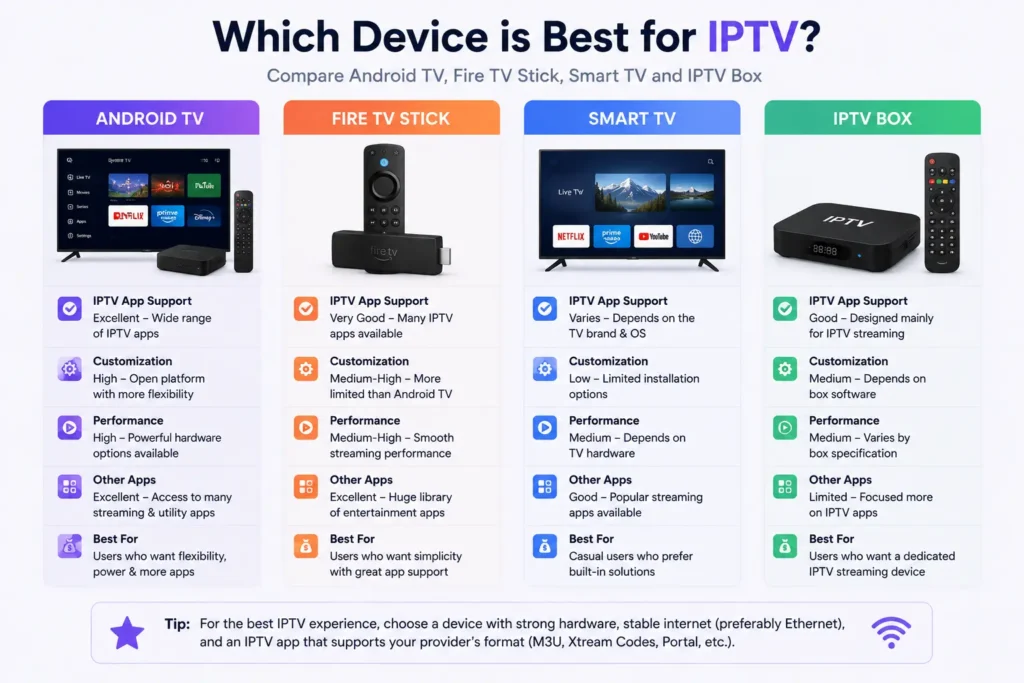
Choosing a streaming device depends on how much flexibility and performance you need.
| Feature | Android TV | Fire TV | Standard Smart TV | Dedicated IPTV Box |
|---|---|---|---|---|
| IPTV app selection | Excellent | Very good | Varies | Usually good |
| Customization | High | Medium-High | Limited | Medium |
| 4K support | Model dependent | Model dependent | Model dependent | Model dependent |
| App ecosystem | Broad | Broad | Manufacturer dependent | IPTV-focused |
| Ease of setup | Easy | Easy | Easy | Easy-Moderate |
| General entertainment apps | Excellent | Excellent | Good | Varies |
| Best for | Flexible streaming setup | Simple streaming | Casual users | IPTV-focused users |
Android TV vs Fire TV
Both are capable IPTV platforms.
Android TV is often preferred by users who value app flexibility and customization, while Fire TV provides a streamlined Amazon-focused streaming ecosystem.
Performance depends more on the exact hardware model than on the platform name alone.
Android TV vs Built-In Smart TV Apps
Smart televisions from different manufacturers use different operating systems.
Some have excellent IPTV app support; others have a more restricted app store.
Android TV generally offers broader application flexibility.
Android TV vs Dedicated IPTV Box
A dedicated box may provide a focused IPTV experience, while Android TV can combine IPTV with:
- YouTube
- Streaming services
- Games
- Media players
- Music applications
- Casting
For many households, Android TV is therefore the more versatile option.
IPTV Subscription or IPTV Reseller Panel: Which Do You Need?
This distinction is important.
An IPTV subscription is normally designed for an individual viewer who wants to use the service on a compatible device.
An IPTV reseller panel, on the other hand, is intended for people managing customer activations, subscription accounts, credits, and renewals.
Lite4K IPTV Panel
Resellers who need an alternative platform for managing IPTV customers can also explore the Lite4K IPTV Panel. Compare its available credits, supported devices, reseller features, and subscription options with your business requirements before selecting a panel.
| IPTV Subscription | IPTV Reseller Panel |
|---|---|
| Intended for viewers | Intended for resellers |
| Login used for playback | Dashboard used for management |
| Usually one customer account | Can manage multiple users |
| No credit-management dashboard | May include reseller credits |
| Best for watching IPTV | Best for managing IPTV customers |
If you are looking for reseller options rather than a single viewing subscription, browse the available IPTV reseller panels on Ultimate IPTV Panel before choosing a platform.
Choosing an IPTV Option for Android TV
Before choosing any IPTV service or panel, verify five things.
Device Compatibility
Confirm that your Android TV or Android box supports the required application and playback format.
StarShare IPTV Subscription
Android TV users can also explore a StarShare IPTV subscription when comparing options that support common IPTV login methods and compatible streaming devices. Before choosing a subscription, confirm that its supported format, device requirements, and available features match your Android TV setup.
Login Format
Ask whether the service uses:
- M3U
- Xtream-compatible login
- Portal URL
- MAC activation
Then make sure your chosen IPTV player supports it.
Streaming Quality
Do not select a service based only on claims such as “4K.”
Check whether the content you actually want is available in the appropriate resolution and whether your internet connection can sustain it.
Customer Support
Setup assistance can be valuable when configuring Android TV for the first time.
Subscription or Reseller Requirement
Choose a normal IPTV subscription if you simply want viewing access.
Choose an IPTV reseller panel only if your goal is to manage customer subscriptions or reseller credits.
Ultimate IPTV Panel provides multiple panel options that can be compared according to supported devices, reseller requirements, subscription structure, and region.
Strong4K IPTV Panel
If 4K-oriented IPTV options are part of your comparison, you can also review the Strong4K IPTV Panel to understand its reseller options, supported devices, and available IPTV packages. Remember that actual 4K playback still depends on the source stream, device capabilities, and internet connection.
Android TV IPTV Setup Checklist
Before streaming, confirm the following:
- Android TV is connected to a stable internet connection
- Your IPTV app is compatible with the device
- Your subscription or service is currently active
- Credentials are entered correctly
- EPG has synchronized
- Device software is updated
- Enough storage is available
- Wi-Fi signal is strong, or Ethernet is connected
- Your television supports the intended video resolution
Completing these checks can prevent most basic setup problems.
Final Thoughts
IPTV on Android TV offers a flexible way to combine internet-based television with the convenience of a modern smart-TV platform. A good Android TV setup can support live television, video-on-demand libraries, EPG information, favorites, Full HD playback, and even 4K streaming when the source, device, and internet connection are capable of delivering it.
For the best experience, focus on the complete setup rather than only internet speed: choose a compatible IPTV player, use reliable credentials, maintain strong network connectivity, keep your device updated, and use Ethernet whenever wireless performance is inconsistent.
If your goal goes beyond personal viewing and you want to manage customers, activations, subscription credits, or renewals, you can also compare IPTV reseller panels on Ultimate IPTV Panel and select an option based on your device, region, and reseller requirements.
Always use IPTV services and content sources that you are authorized to access in your jurisdiction.